Guide
How to set up a phone menu for a small business
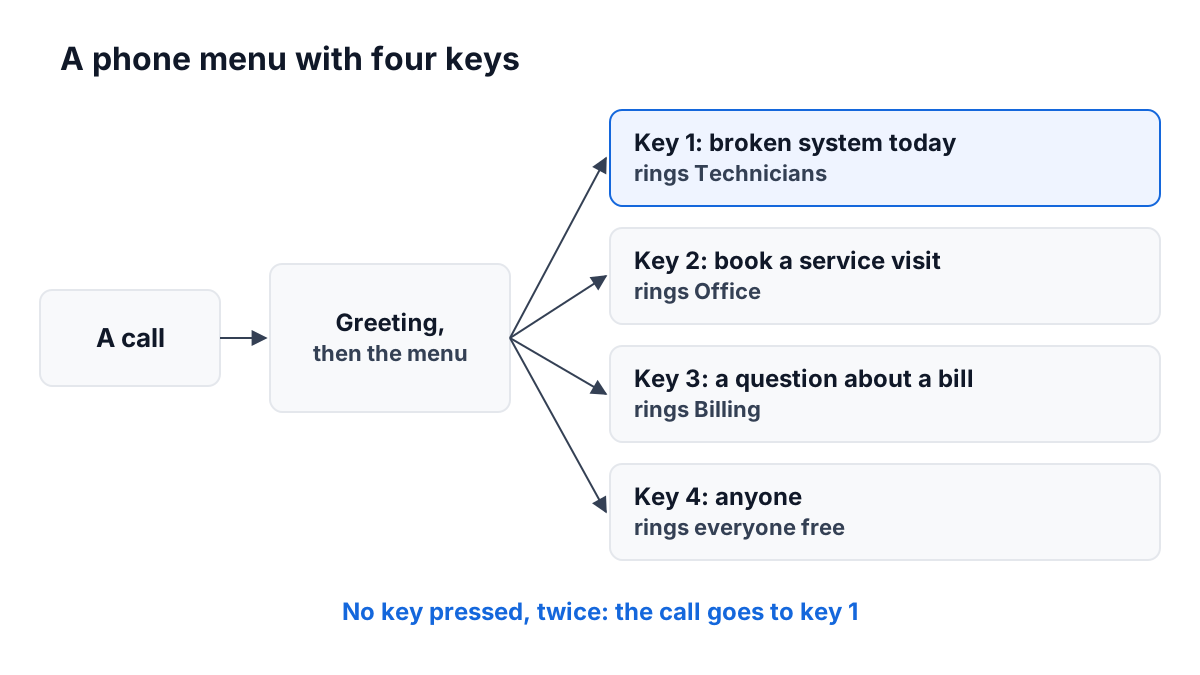
A phone menu has one job: to get a caller to the right person with a single choice. Everything else — the music, the voice, the polish — matters less than that. A menu that sends people around in circles costs you the call, and a small business rarely gets a second one.
This guide walks through planning a menu for a small team, writing it, and testing it. It works whatever phone system you use. The worked example is a six-person heating and cooling company we made up.
Start with what callers want
Before you write a word, list the reasons people actually call you. Look at the last few weeks: the voicemails, the notes on your desk, the calls you remember. Most small businesses find the same three or four reasons cover nearly every call.
For our example, Fernhallow Heating has six people: Maria and Luis, who run the office, three technicians, and Sam, who does the books. When they wrote down two weeks of calls, they found four reasons:
- Something is broken today: no heat, no cooling, a strange noise.
- Someone wants to book a service visit or a seasonal check.
- Someone has a question about a bill.
- Everything else: a supplier, a job applicant, a past customer saying thanks.
That list is the menu. You do not need more options than you have reasons.
How many options
Three or four is right for most teams of up to twenty-five people. Every extra option is one more sentence a caller has to hold in their head before they choose. If you find yourself writing a fifth or sixth option, two of them probably go to the same people, and can be merged.
A menu inside a menu — “press 2, then press 1” — is rarely worth it for a small team. Each level adds time, and callers lose patience. If one option needs splitting, it may be a sign that the people behind it should split the calls between themselves instead.
Name the caller’s task, not your department
“For Accounts Receivable, press 3” makes the caller translate their problem into your org chart. “If you have a question about a bill, press 3” does not. Name each option after what the caller wants to do:
| Department wording | Task wording |
|---|---|
| For Service, press 1 | If your system is not working today, press 1 |
| For Scheduling, press 2 | To book a visit, press 2 |
| For Accounts, press 3 | For a question about a bill, press 3 |
Put the option first and the key last: “To book a visit, press 2.” A caller listens for their reason, and then needs the number straight after it. “Press 2 to book a visit” makes them remember a number before they know if they want it.
Order the keys on purpose
Put the most common or most urgent reason on key 1. Many systems send a caller who presses nothing to one of the options, and that should be the one that hurts most to miss. For Fernhallow, a broken furnace in January is the call they cannot afford to lose, so it is key 1.
Always leave a way to reach a person
Some callers will not fit any option. Some will be in a hurry, or upset, or calling from a noisy kitchen. Give them a key that rings whoever is free. Traditionally that is key 0. If your system only offers keys 1 to 4, make it the last key and say it plainly: “To speak to anyone, press 4.”
Write the greeting short
The greeting is said before the menu, so every second of it delays every caller. Say who they have reached and nothing more. “Thanks for calling Fernhallow Heating.” is enough. Leave out your web address, your slogan and the line about how important their call is.
If you are writing the words from scratch, the phone menu script builder has fill-in templates for the greeting, the menu, the closed message and voicemail, with timings.
Open hours and closed hours are two messages
A call at 10 AM on a Tuesday and a call at 9 PM on a Saturday need different answers. Write them separately.
In hours, the greeting and the menu route the call to people who can pick up.
Out of hours, the caller first needs to know you are closed and when you open. Then they need to know what to do if it cannot wait. For many businesses that is one option for urgent calls and voicemail for everything else. There is more on this in handling calls after hours.
Decide what happens when no one answers
Every option should end somewhere. If the people behind key 2 are all busy, does the caller wait, try someone else, or leave a message? Decide it for each option, and make sure no path ends in silence or a dead line. A caller who reaches voicemail and leaves a message is not lost. A caller who hears ringing for two minutes and hangs up is.
If several people share an option, look at how that set of people rings: all at once, or one at a time. Our guide to ring groups covers the choice.
The worked example, in full
Here is what Fernhallow Heating ended up with.
In hours (8 AM to 6 PM, Monday to Friday):
- Greeting: “Thanks for calling Fernhallow Heating.”
- “If your heating or cooling is not working today, press 1.” Rings the three technicians.
- “To book a service visit, press 2.” Rings Maria and Luis.
- “For a question about a bill, press 3.” Rings Sam.
- “To speak to anyone, press 4.” Rings everyone who is free.
- No key pressed: the call goes to key 1.
Out of hours:
- Closed message: “Thanks for calling Fernhallow Heating. We are closed at the moment. We are open 8 AM to 6 PM, Monday to Friday.”
- “If you have no heat or no cooling and it cannot wait, press 1.” Rings the on-call technician.
- “To leave a message, press 2.” A message for the morning.
Notice the closed menu also puts the urgent option first. A caller with a broken furnace at night is the one most likely to press nothing and wait.
Test it by calling it
A menu looks right on paper and sounds wrong on the phone more often than you would think. Once it is set up, call it from an ordinary phone, not from the office:
- Call once for every key, and check that the right people ring.
- Call and press nothing. Where do you end up?
- Call and press a key that is not an option.
- Call outside your hours, and listen to the closed message to the end.
- Call while everyone behind one option is busy.
- Time the whole thing from the first ring to the last option. If the menu takes longer than about twenty seconds to say, cut words.
Ask someone outside the business to try it too. They will hear the menu the way a customer does.
Keep it up to date
Change the menu when the reasons people call change, not on a schedule. If you notice callers keep pressing 4 and asking for the same thing, that thing deserves its own key. If an option is never pressed, take it out.
Setting it up in ContactRoll
In ContactRoll, a menu belongs to a number’s setup under Settings › Calling. For each number you choose its hours (open all the time, or your business hours), an optional greeting, and then a menu of up to four keys, each ringing one of your call groups or taking a message. Out of hours you write a closed message, then take a message, ring an on-call group, or offer a menu of its own. A caller who presses nothing hears the menu again, and after a second silence goes to key 1. Each setup is saved as a version, and nothing changes for callers until you switch one on — the preview shows each step, word for word, and Call it yourself reminds you to ring the number before you trust it.
Questions
How many options should a small business phone menu have?
Usually three or four. Each one should name a task the caller has, such as booking a visit, and one of them should always reach a person.
Should a phone menu be different after hours?
Yes. Treat open and closed hours as two separate messages: in hours the menu routes the call, and out of hours the caller hears your hours and what to do if it cannot wait.
How do I test a phone menu?
Call the number yourself from an ordinary phone, once for every key, once pressing nothing, once pressing a wrong key, and once outside your hours.